
On this page
Who This Is For and What You Can Decide
This is for coworking and flex office operators, community managers and facilities leads who are planning a new floor, reworking an older one or standardizing screens across several sites. A coworking space TV setup is a balancing act. Members pay for a place to concentrate, and they also pay for a place that feels alive. Screens can help with both, or work against both.
By the end you should be able to decide four things:
- Which zones get a screen, which get signage only and which get nothing.
- What each screen shows, and whether it ever plays sound.
- Who controls the remote, and what the posted rules say.
- What to ask a commercial provider before you sign anything.
The guiding idea is simple. Put live TV where people already expect conversation and movement. Keep it out of places where people expect quiet. Then write down the rules so your community team is not refereeing volume disputes every afternoon.
Map the Floor Before You Buy Screens
Walk the space as a member would. Notice where people linger with a coffee, where they take calls and where they put headphones on and disappear. Sound travels further than most operators expect in open plans with hard floors, glass and high ceilings, so the question for each zone is not only whether a screen fits, but what it will do to the zones around it.
| Zone | Screen role | Sound | Typical programming | Noise risk |
|---|---|---|---|---|
| Lobby and reception | Welcome screen | Off | Building info, events calendar, calm live TV with captions | Low |
| Lounge and common area | Social screen | Off by default, low on request | News, business coverage, weather, major live events | Medium |
| Kitchen and café | Casual screen | Off | Captioned news or weather | Low to medium |
| Phone booth corridor | None, or silent signage | Never | Booking info, wayfinding | High if misused |
| Open desks and focus areas | None | Never | Not recommended | High |
| Event and meeting rooms | Presentation and watch screen | On, contained to the room | Laptop input, livestreams, live TV for watch events | Low when doors close |
Two patterns show up again and again. Lounges that border the open desks cause most complaints, because a lounge screen with sound bleeds straight into the work area. And phone booths placed next to a social space make calls harder, even when the booths themselves are well built. If your floor plan already has those adjacencies, plan quieter screens there rather than skipping screens altogether.
Lounges and Common Areas: The Screens Members Notice
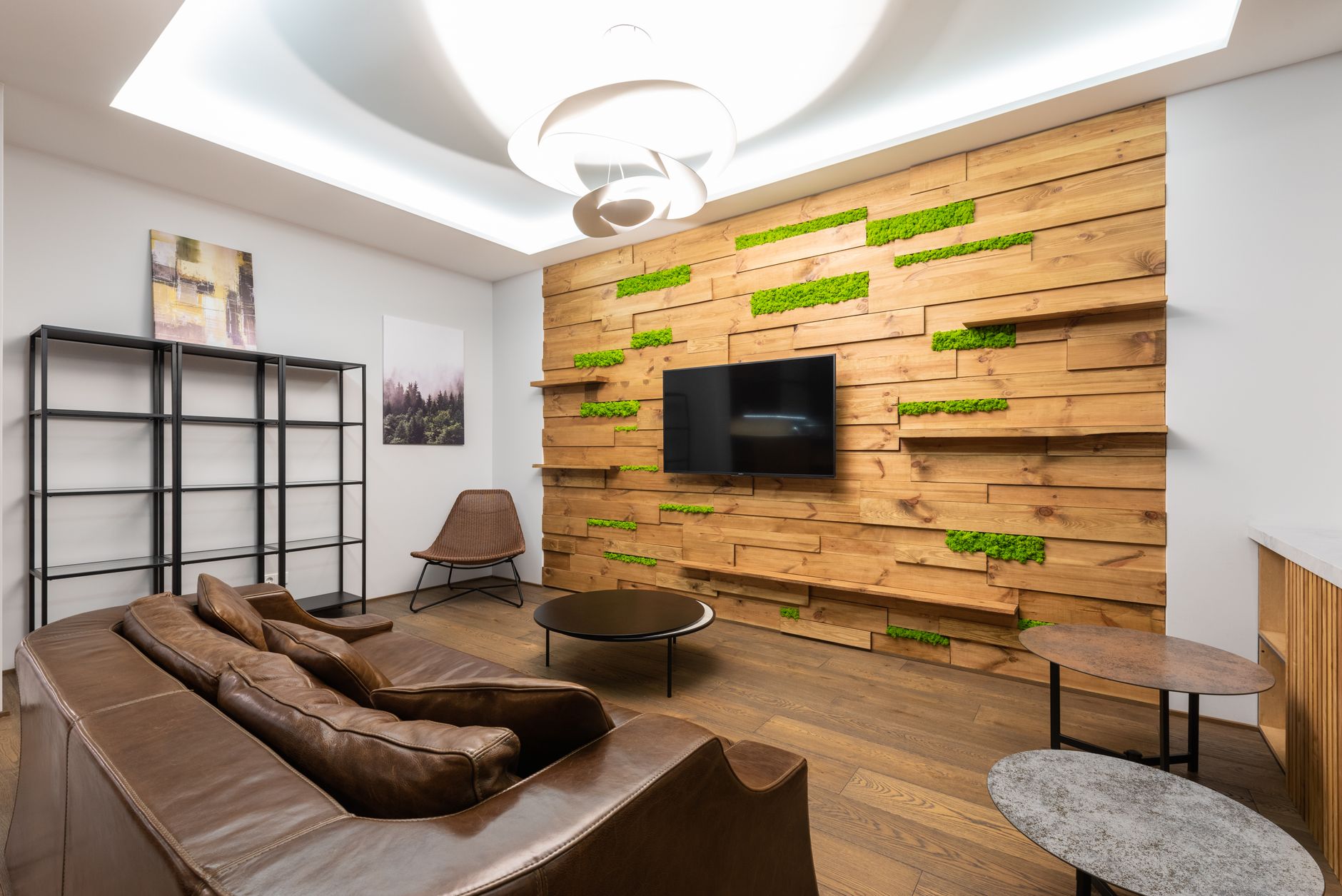
The shared office lounge TV is the screen members see most, so it sets the tone. Done well, it gives the room a pulse: the market open on a busy morning, weather before the commute home, a big game that draws a small crowd on a Thursday evening. Done badly, it becomes a channel-surfing battle with the volume creeping up.
A few choices make the difference:
- Captions on, sound off as the default. Most people glance at a lounge screen rather than watch it. Captions carry the content without disturbing anyone nearby. Our page on closed captions in shared spaces covers how to keep it that way.
- A short, agreed channel list. Pick a handful of news, business, weather and general-interest channels for daytime. Save live sports and major events for scheduled moments.
- A plan for big news days. Decide ahead of time when lounge screens switch to live coverage and when they go back. Our office TV breaking news plan walks through triggers and timing.
- Daypart thinking. A calm daytime lineup, a livelier early evening and screens off or on a loop after the community team leaves.
If your space offers background audio in the lounge or café, keep it separate from the TV. A managed commercial background music service gives the room atmosphere at a controlled level, while the screens stay captioned. Two competing audio sources in one room is a reliable way to generate complaints.
Is live TV a real flex office amenity?
For some communities, yes. Members who work in finance, media, sales or sports-adjacent businesses often value having live coverage on in the background, and watch events for big games or award shows can become part of your community calendar. For a community of writers and developers who prize silence, a single captioned lounge screen may be all you need. Ask your members before you buy for the whole floor.
Phone Booth Zones and Focus Areas: Where Screens Backfire
Phone booths exist because members need privacy and quiet for calls. Anything that adds sound or visual distraction near them undermines the reason they are there. The safest rule is no live TV in the booth corridor and none facing the open desks.
Where a screen is useful in these areas, keep it strictly informational and silent:
- A small signage display showing booth availability or the booking link.
- Wayfinding and quiet-zone reminders.
- Building notices, such as maintenance windows or fire drill times.
Avoid motion-heavy content here. A silent screen running fast-cutting live sports in a member's peripheral vision is still a distraction, even with no sound at all.
If you cannot avoid a lounge sitting next to booths, angle screens away from the work area, keep sound off at the TV itself rather than relying on members to keep it low, and consider soft furnishings or acoustic panels on the shared wall.
Event Rooms: One Screen, Several Jobs
The coworking event room display has the hardest job in the building. On Monday it shows a startup pitch from a presenter's laptop. On Wednesday it carries a livestreamed webinar for a member company. On Saturday it hosts a watch party for a championship game that your community team has been promoting for weeks.
Plan the room around that variety:
- Easy input switching. Presenters should be able to plug in or connect without calling the community manager. Label inputs plainly on the wall plate and on the remote.
- A live TV feed in the room. If you plan watch events, run a commercial feed to the event room rather than improvising with a laptop and a personal app. It keeps viewing on an account set up for a business and avoids last-minute scrambling with logins and cables.
- Room-contained sound. Event rooms are the one place where sound is expected. Keep speakers inside the room and close the doors during events.
- Screen size from the back row. Size the display for the farthest seat when the room is set theater-style. Our guide to matching screen size to seating distance applies here too.
- A booking rule for TV events. Treat watch events like any other room booking, with a host responsible for setup, volume and reset.
If your event room doubles as rentable space for outside groups, the planning looks a lot like a small conference venue. Our page on banquet hall TV service covers independent feeds for different bookings, which is useful if you run more than one event space.
Shared-Use Rules Members Will Follow
Most noise complaints in coworking spaces are not really about TV. They are about unclear expectations. Members who would never turn up a screen in an office will happily do it in a lounge if nobody has said otherwise. A short, visible set of rules removes the guesswork.
A checklist for your house rules:
- Default state. Lounge and café screens run captioned with sound off. Say so on a small card near each screen.
- Remote custody. Keep remotes at the front desk. Members can ask staff to change the channel.
- Sound requests. Sound may go on only in the event room, or in the lounge during scheduled watch events posted on the community calendar.
- Quiet hours. Name the times when lounge sound is never on, such as core working hours.
- Content standards. Keep programming suitable for a professional, mixed audience, including clients and guests.
- After-hours behavior. Decide whether screens shut off, switch to a loop or stay on for members with late access.
- Feedback route. Tell members how to raise a complaint or request, such as a message to the community team, so issues surface early.
Where your screens and equipment allow it, limiting volume or channel choices in sensitive zones takes the burden off your staff and off well-meaning members. Ask about this during planning rather than after the first complaint.
Common Mistakes and What to Ask a Provider
The same handful of mistakes show up in coworking buildouts:
- Treating every screen the same. A lobby, lounge and event room need different programming and sound rules. Planning by zone rather than by screen avoids most problems.
- Mounting where it is easy, not where it works. A screen on the only free wall may face the desks.
- Running a personal or consumer account. It may seem simpler at first, but it is not designed for a business where members and guests watch.
- No owner. If nobody on the community team owns the screens, settings drift and complaints pile up.
- Inconsistent sites. Operators with several locations often end up with different equipment and rules at each one, which makes support slower. Keeping a one-page record for each site helps.
Questions worth asking any commercial provider:
- Can each zone carry different programming, and can we limit channel choices and sound in certain areas?
- How does the event room get a live feed alongside laptop and livestream inputs?
- Who installs, and who do we call when a screen goes dark on a busy morning?
- If we open another location, how would the same plan extend to it?
- How do programming options change if our community's interests change?
Sports Direct | DLM Media is an authorized commercial dealer with 30+ years of expertise and technicians and engineers in all 50 states. You can see how programming, equipment, installation and support fit together on our services page or read more about commercial TV for business. When you are ready, talk with a programming specialist about a plan for your floor.